As part of Eagle Technology’s ongoing work to provide up-to-date, high-performance basemaps compatible with current ArcGIS technology, we want to inform you about an important update to our basemap services. Please review the details below to ensure a smooth transition and optimal use of these basemaps in your work.
– Boudewijn Boogaard
Key Points
- Deprecation notice: Starting 5 May 2025 Eagle Technology will deprecate our “Classic Basemap Server”.
- Redirection: URLs referencing the “Classic Basemap Server” will be automatically redirected to the “Current Basemap Server” which hosts all of the same basemaps but with a different tiling scheme.
- Users should Identify if applications are making use of the “Classic New Zealand Basemap server”: The attributes at the bottom of the page will show “Classic Basemap Server” if this is the case.
- Migration Advice: If you identify that you are currently using the “Classic Basemap Server” then, based upon which specific basemap you are using, consider the following:
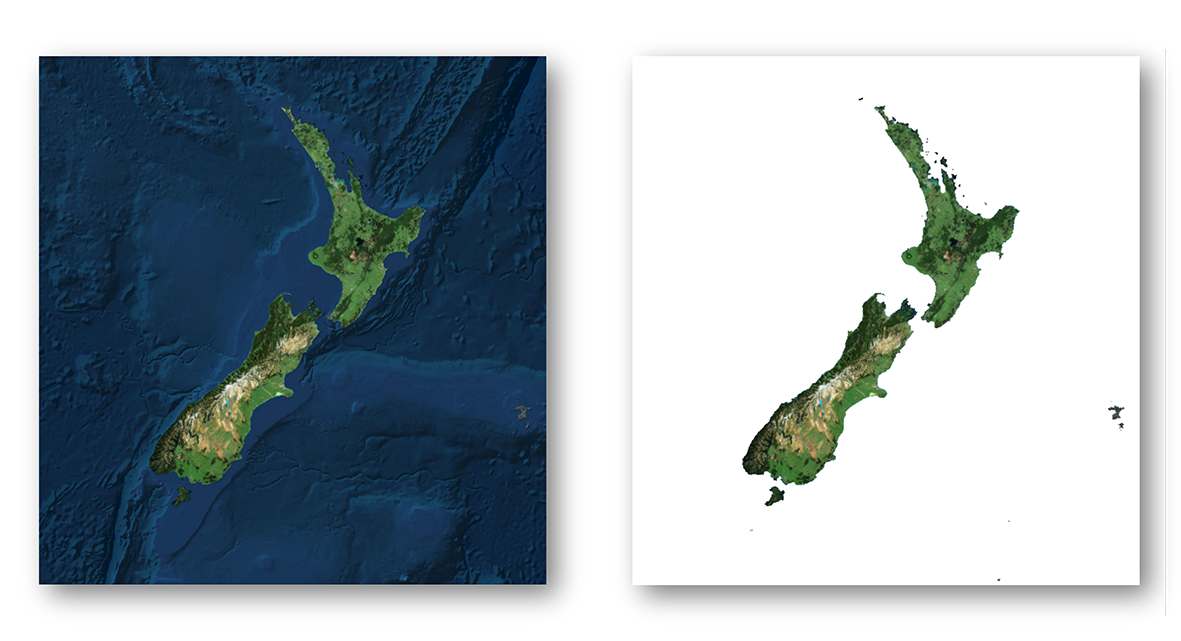
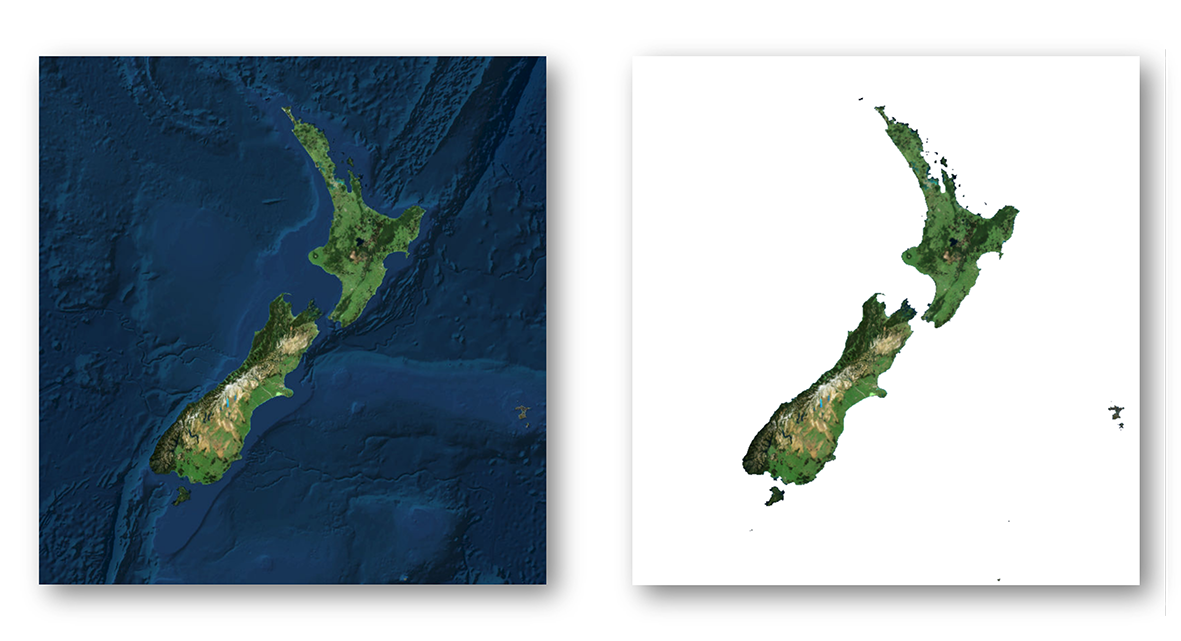
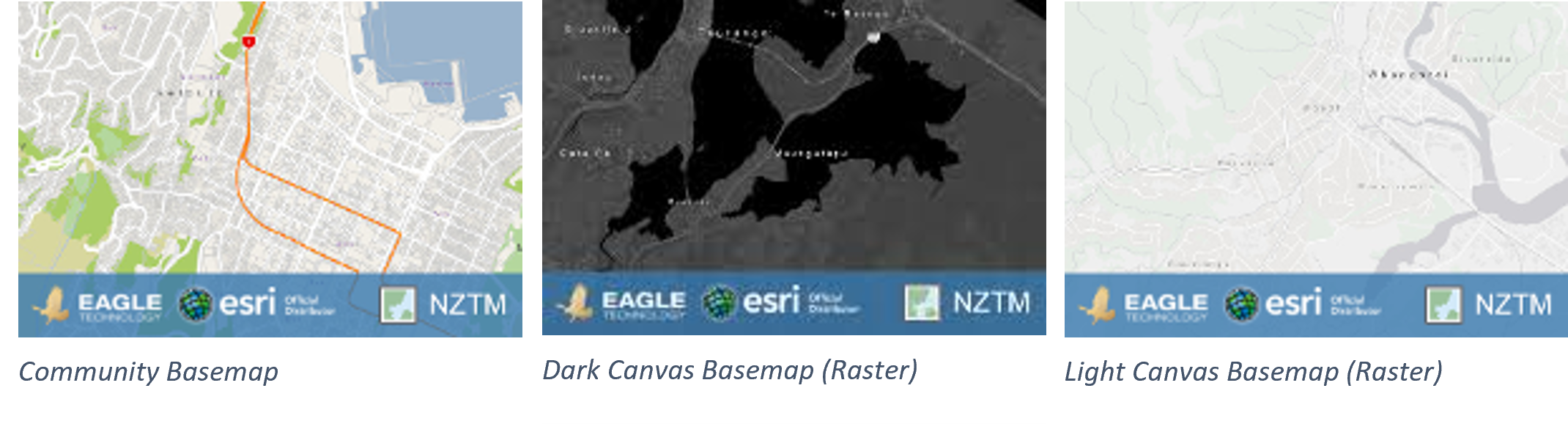
- For users of the Community Basemap or the Dark Canvas Basemap (Raster), and the Light Canvas Basemap (Raster), see images below, these services have been in mature support since December 2022 on both the classic and current basemap server and no longer receive updates. We therefore strongly recommend transitioning to Vector Basemaps.
- Manually migrating to the Current Basemap server or Vector Basemaps will allow proper testing and avoid potential disruptions.
Background
For over a decade, Eagle Technology has provided authoritative New Zealand basemaps in the NZTM projection to ArcGIS users. Over this time, significant advancements have been made, including:
- Introduction of Vector Basemaps; In December 2019 we introduced NZ Vector Basemaps, offering improved performance and functionality.
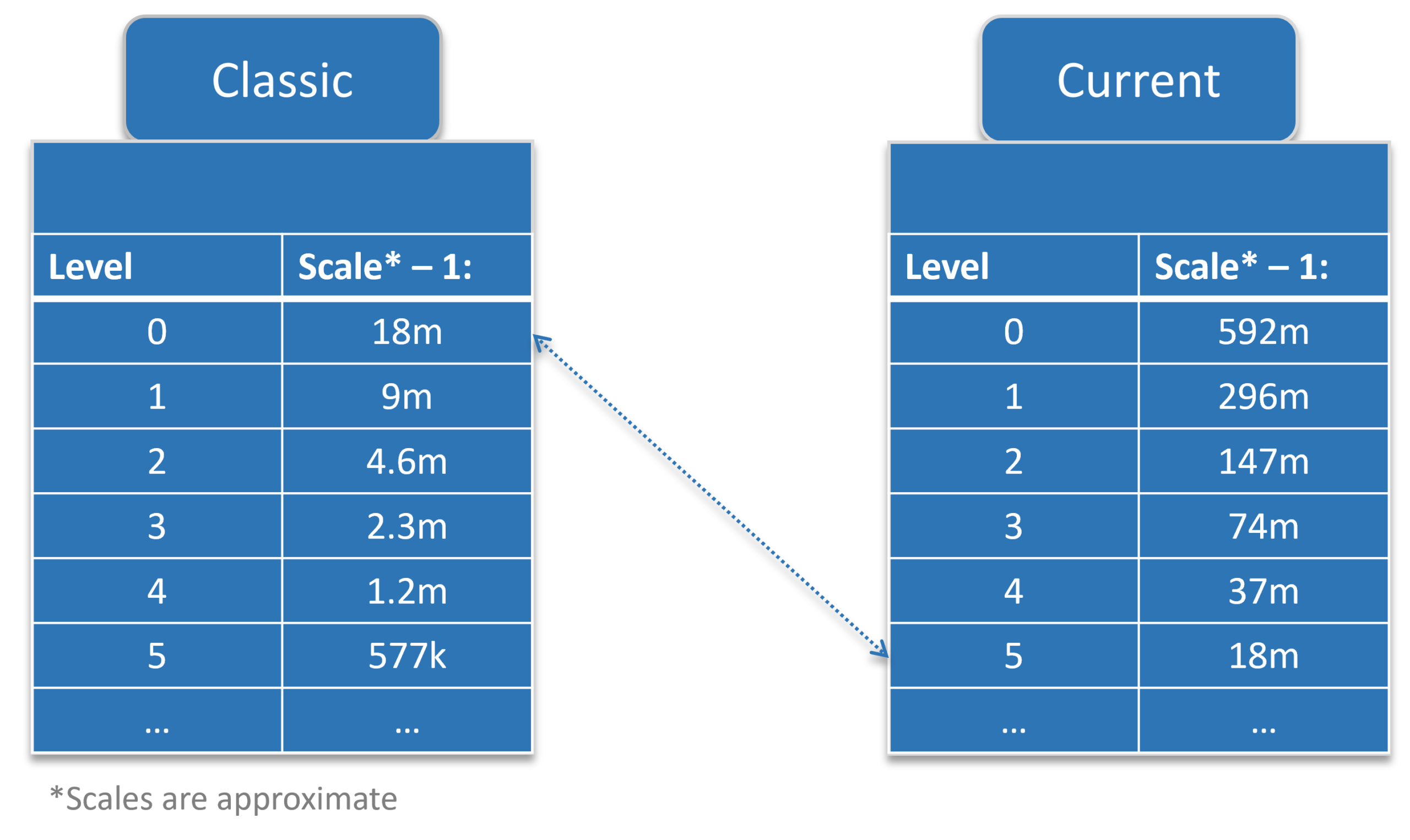
- Introduction of a New Basemap Server with a consistent tiling scheme; In early 2020 we deployed a new basemap server hosting the same basemaps, but with a consistent tiling scheme across all basemaps on that server for improved compatibility. The updated scheme includes:
- 5 Additional small-scale zoom levels.
- Larger scale zoom levels, enabling zooming to at least 1:70.
- Transition of Raster Basemaps to Mature Support in December 2022, as equivalent Vector Basemaps became available. This included both the Community Basemap and the Light and Dark Canvas Maps. See this blog for the announcement.
What’s Changing?
There are two basemap servers that host the same basemaps. The Classic Basemap Server hosts the basemap with different tiling schemes across the basemaps, the basemaps on the Current Basemap Server all have a consistent tiling scheme.
We will redirect the URLs that currently go to the Classic Basemap Server to the Current Basemap Server.
The basemaps on the Classic basemap server haven’t received any data updates since December 2022. The basemaps on the Current basemap server hosts basemaps that are in mature support, so they are also not receiving any updates, but the NZ Imagery and the LINZ Topographic basemaps are still being actively maintained.
When you are using a basemap that is in mature support, we recommend migrating to one of the Vector Basemaps. Please read the blog with more information on this here.
Scenarios That May Require Action
While many users will experience a seamless transition, there are scenarios where adjustments may be required:
- Tiling Scheme Incompatibilities: Custom tiled layers aligned to the Classic Basemap tiling scheme may no longer overlay correctly. This mainly happens in 3D applications like Scene Viewer. The custom tiled layers must be re-cached using the new tiling scheme.
- Zoom Level Changes: Apps or URLs using specific zoom level IDs will require updates. For example, a zoom level ID of 14 on the Classic Basemap corresponds to ID 19 on the Current Basemap server.
- Cache and Map Updates:
- In ArcMap: Clear the Display Cache.
- In ArcGIS Pro: Reopen the map or project.
Please note: These scenarios are not exhaustive, other issues may arise depending on your specific workflows or applications. We recommend thorough testing to identify and address any additional challenges.
URLs Impacted
The URLs that are currently directed to Classic Basemap Server and will be redirected to the Current Basemap Server are:
https://server.arcgisonline.co.nz/arcgis/rest/serviceshttps://services.arcgisonline.co.nz/arcgis/rest/serviceshttps://basemaps.cloud.eaglegis.co.nz/arcgis/rest/services
Identify if a basemap from the Classic Basemap server is used.
There are a few ways to identify if you are using a basemap from the Classic basemap server. You know it is coming from the Classic Basemap Server if:
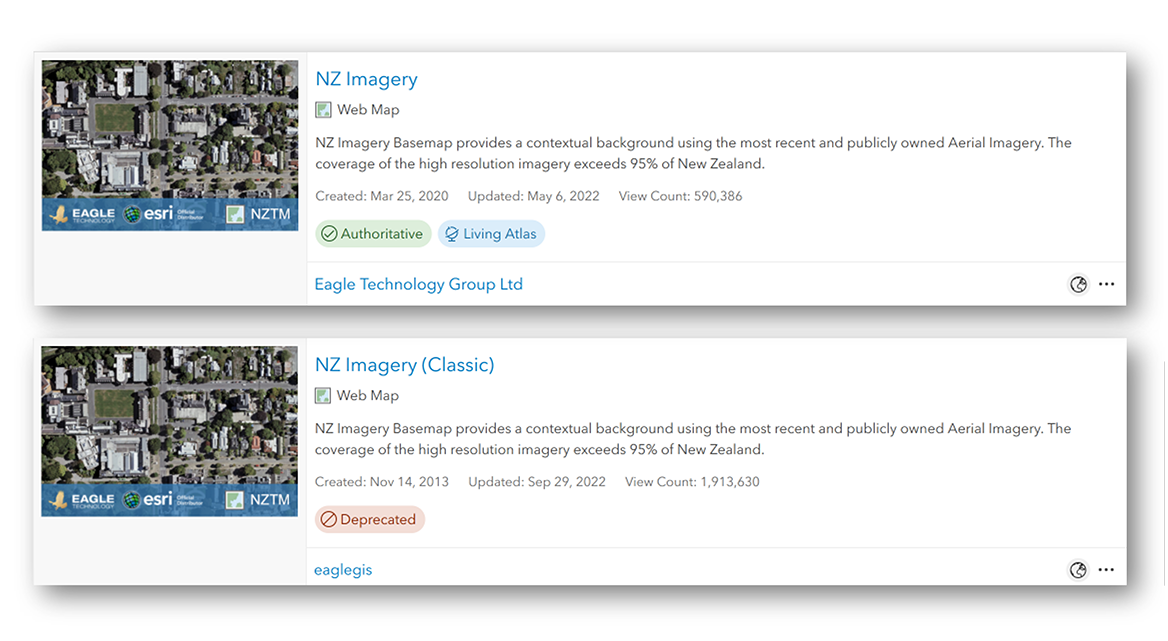
- the attributes, usually on the bottom of the map, says “Classic Basemap Server”.
- the title of basemap layer item or the WebMap item has “Classic” in the name
- the URL to the basemap is one of the impacted URLs
These URLs will remain active but will be directed to the Current Basemap server.
When migrating manually to the new server before the update, please use the services from this URL: https://services1.arcgisonline.co.nz/arcgis/rest/services
Advised actions
We strongly encourage users to:
- Identify all maps, layers, and apps that use basemaps that use the Classic Basemap server.
- Test and or migrate the layers to the Current Basemap server or a Vector Basemap.
- Update any hardcoded URLs or zoom-level parameters as needed.
There are many ways to update the URLs depending on the situation.
- Update the basemap in the WebMap by opening the webmap and selecting a current basemap as the new basemap for the map.
- Update the group that holds the basemaps for the organisation’s basemap gallery. Remove the classic basemap webmaps and add webmaps with the current basemaps.
A tool that can be helpful with updating maps and apps is the ArcGIS Assistant on https://assistant.esri-ps.com/. This tool allows you to update URLs in layers, maps and apps. Be sure to read the user guide to familiarise yourself with its capabilities.
Basemaps in Mature support
For users of Community, Dark Canvas or Light Canvas raster basemaps from either the Classic or the Current Basemap Server, we highly recommend transitioning to Vector Basemaps to benefit from the latest updates and support. These basemaps have been in Mature support since December 2022 which means that they have not received any data updates since then.
HTTPS to be enforced for Eagle Basemaps
For reasons of backwards compatibility, Eagle has allowed access to our raster basemaps using both HTTP and HTTPS. To stay in line with industry guidelines we will be enforcing HTTPS access only to our Eagle basemaps from July 2025. Any requests in HTTP will be redirected to HTTPS. In many cases the redirect will work, however there may be some specific cases where the redirect does not work, including some circumstances within custom developer applications. In these cases, the developers will need to update their applications and tools to accommodate HTTPS.
Resources
- All Basemaps and Basemap layers that can be used are organised in this group: https://www.arcgis.com/home/group.html?id=c8d07daebe3942e69fbda649fee68a9f
- NZ Tiling Scheme used by Eagle Technology basemaps: https://www.arcgis.com/home/item.html?id=75d8c2aec505409ead3c07f6e89f56fb
- Blog: NZ Raster Basemaps (Classic) Are Moving to Mature Support (5 Oct 2022): https://www.eagle.co.nz/blog/nz-raster-basemaps-classic-are-moving-mature-support
- More information on Eagle Technology content can be found on the Content Hub at https://content.eagle.co.nz